
Subscriptions
the only way the app earns.
Weekly, yearly and lifetime plans. Product ids are created in the stores and typed into the console. Nothing is hard-coded and no purchase is ever faked.
01How it works
- Free users keep one real Instagram account (the sample account does not count), see the first few rows of each list (console: free rows per list) and meet locks on the features you mark as Pro.
- Pro is granted only by a store event for a product id you configured, optionally confirmed by your server.
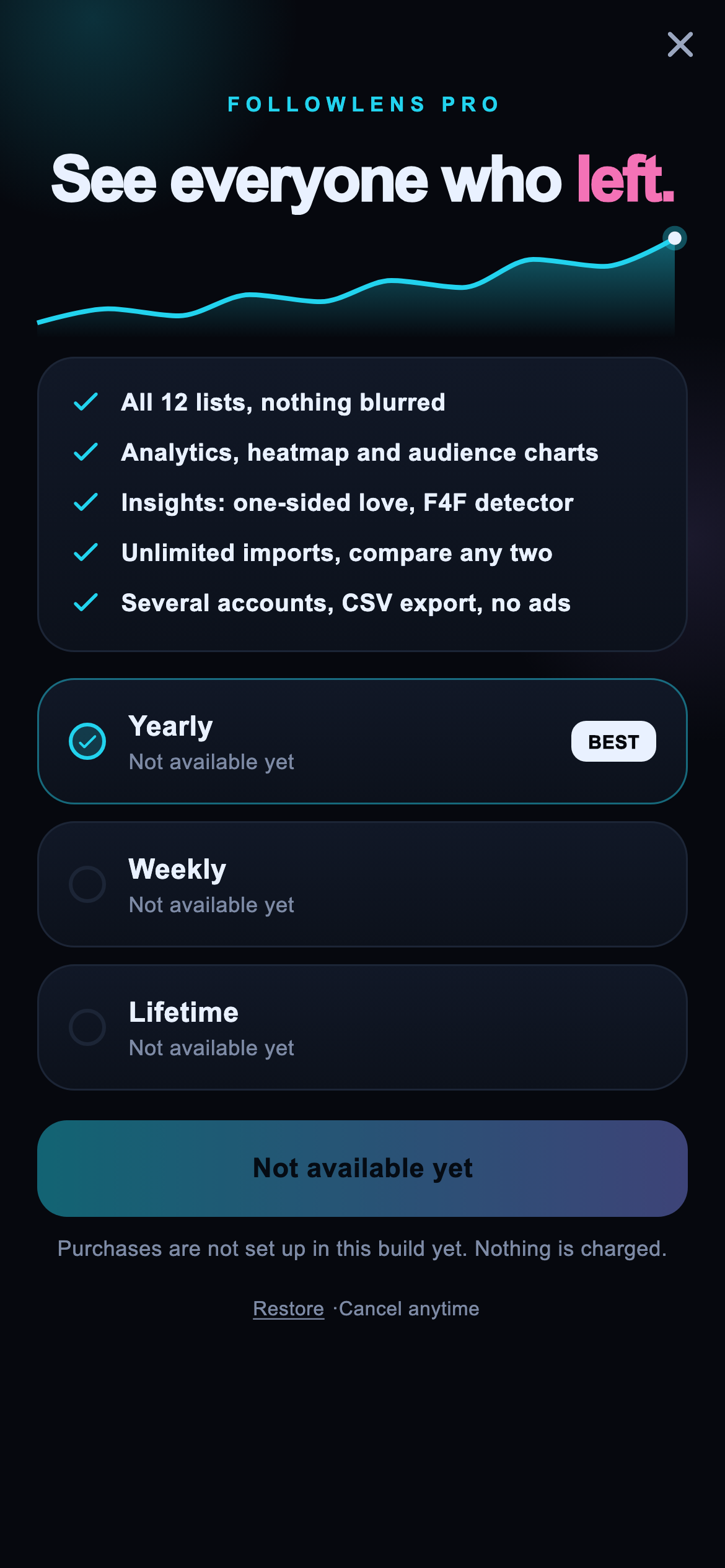
- An empty product id means "not sold". Until you set ids the paywall says "Purchases are not set up yet" and the button reads "Not available yet".
- There are no ads. Monetisation is subscriptions (and the lifetime purchase) only.
021. Create the products in the stores
- App Store Connect. Create your app with your bundle id, add an in-app purchase for each plan you sell (a subscription group with weekly and yearly auto-renewing subscriptions, and a non-consumable for lifetime). Set the free trial on the subscription itself. In Xcode enable the In-App Purchase capability on the Runner target.
- Google Play Console. Create the app with your package name, upload a build to a testing track, then create the subscriptions (weekly, yearly) and a one-time product (lifetime). Set the free trial on the subscription base plan.
- Note each product id. Use different ids for weekly, yearly and lifetime in each store (the console rejects duplicates).
You do not need all three. Leave an id empty to hide that plan.
032. Enter the ids in the console
Console, App config: paywall: weekly, yearly and lifetime product id for iOS and for Android, headline, subline, and trial days. Trial days is display only: it must match the trial configured in the store, because the store runs the real trial. The paywall shows the price after the trial next to it.
Under App config: Pro features choose which features need Pro. Changes reach the app after the 5 minute config cache.
043. Optional receipt verification
Off by default (/v1/purchases/verify answers 501 verification_off and the app trusts the on-device store result). To switch on, open console Purchases:
| Store | You enter |
|---|---|
| App Store | "Verify App Store purchases" on, your iOS bundle id. For transaction-id lookups also the App Store Server API key id, issuer id and the .p8 private key (write-only). A signed transaction (JWS) is checked against Apple's public root certificate without the key. |
| Google Play | "Verify Google Play purchases" on, the Android package name, and a Google service account JSON that has "View app information" and "View financial data" permissions in Play Console. |
Use the Test buttons next to the secrets. Confirmed purchases appear under Revenue with the store transaction id. Weekly and yearly are subscriptions (each renewal is a revenue event); lifetime is one-time. Errors the app may get: 503 not_configured, 502 store_unavailable, 400 invalid_request.
05Testing purchases
Use App Store sandbox testers and Google Play licence testers. Real store purchases have not been tested by the author: test restore and renewal on a device before release.